
CJ Dropshipping’s 2026 updates bring changes to the tools sellers use every day. The redesigned dashboard makes key sections easier to find. The updated Chrome extension adds AI Q&A and CJ order tracking inside Shopify. Temu sellers also get new tools for refreshing order information and completing product listings.
If you already use CJ, this guide explains what changed, where familiar features moved, and how to use the updated tools.
1. A Redesigned Dashboard: Find Your Everyday Tools More Easily
The refreshed CJ dashboard brings a simpler layout and clearer navigation. It also introduces new names for several familiar sections.
Here are the main changes:
|
Update |
What it means for you |
|
Simplified navigation |
An updated sidebar and streamlined top bar make everyday tools easier to find. |
|
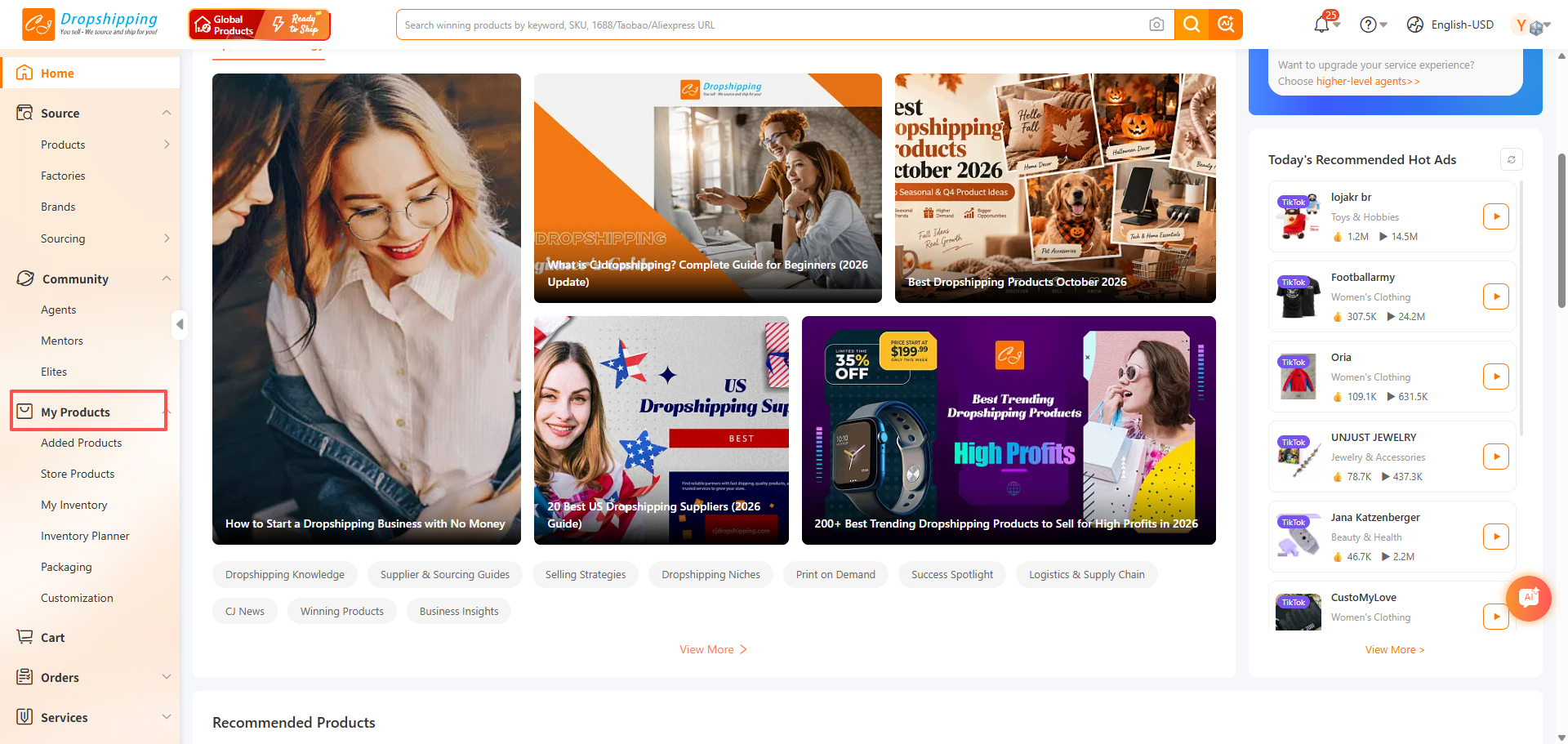
New “My Products” hub |
Saved products are now brought together in one place for listing and other product workflows. |
|
New “Browse History” section |
Revisit products you viewed earlier without searching for them again. |
|
Refreshed list, cart, and order pages |
Updated layouts support a smoother product-selection and bulk-ordering workflow. |
|
“Service Products” renamed “3PL Fulfillment” |
The new name makes it clearer where to manage inventory you supply for CJ to store and fulfill. |
Where to Find Your Browsing History
Open the profile menu or go to My CJ → Browse History.
This is useful when you want to revisit a product but have not saved it yet.
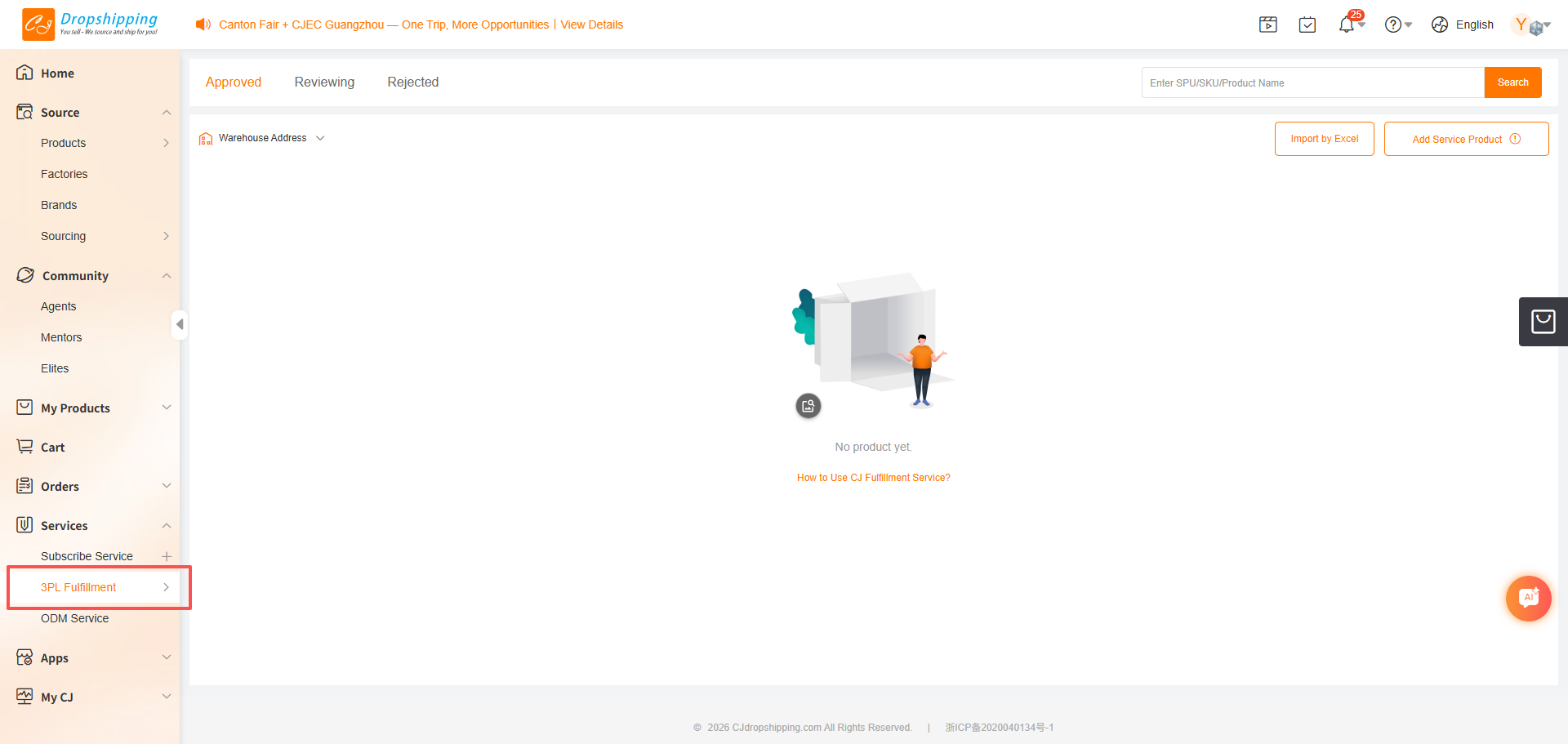
What Does “3PL Fulfillment” Mean?
“3PL Fulfillment” replaces the previous “Service Products” name. The service remains focused on storing and fulfilling inventory that you provide.
If you are new to CJ, these are the three service models to recognize:
- Dropshipping: CJ sources products and ships orders to your customers.
- 3PL Fulfillment: You supply the inventory, and CJ handles warehousing and fulfillment.
- POD 2.0: Print-on-demand customization.
Choose the service based on whether you need product sourcing, fulfillment for your own goods, or customized products.
2. The Updated Chrome Extension: AI Q&A and CJ Tracking Inside Shopify
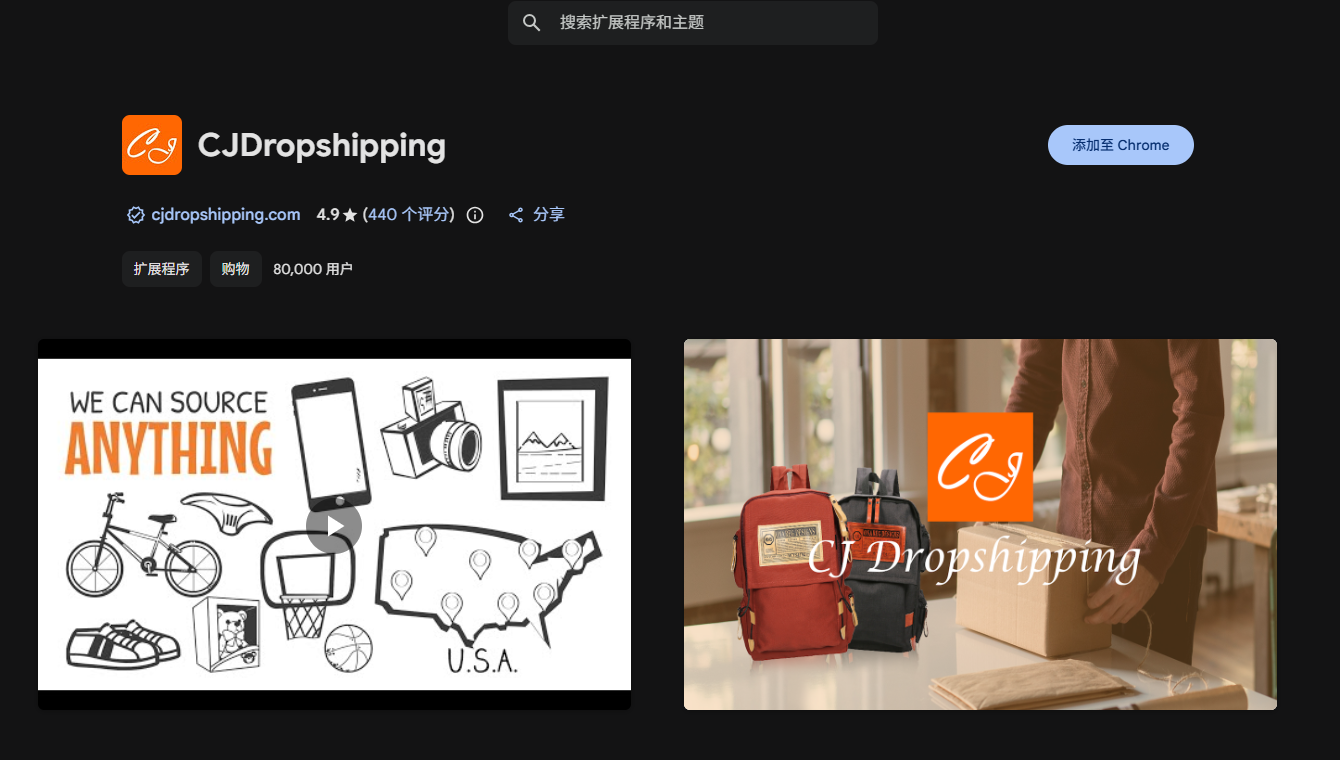
The CJ Dropshipping Chrome extension brings more of your daily workflow into the browser.
The update adds two key features: built-in AI Q&A and CJ order information inside Shopify.
Ask Questions Without Opening the CJ Dashboard
The extension now includes a chat room with AI Q&A. You can ask common questions directly in the extension without first opening and logging into the CJ client.
For quick guidance, this gives you another way to find answers while you work.
Check CJ Order Progress Inside Shopify
With the extension installed and your CJ account signed in, you can view matching CJ order information on your Shopify admin order list page, including:
- CJ order status;
- Tracking details;
- Logistics progress.
This helps you check fulfillment progress without switching back to CJ for each order.
How to Get Started
- Install or update the CJ Dropshipping extension through the Chrome Web Store or the official CJ website.
- Sign in with your CJ account.
- Open your Shopify admin order list to view the available CJ order information.
For installation guidance and feature details, see the official CJ Chrome extension article.
3. “My Products” Replaces Wishlist, SKU List, and Queue
If you are looking for your Wishlist, SKU List, or Queue, those saved products now have a new home: My Products.
Following the dashboard update, products can no longer be added to the three former sections. Previously saved items were migrated to My Products automatically.
When Should You Use My Products?
Add a product to My Products when you want to:
- Save it for listing later;
- Prepare products for bulk listing;
- Connect packaging;
- Use it in the Excel order-import workflow.
The key change: for these workflows, start by adding the product to My Products.
Instead of checking several saved-product sections, you can now begin from one place.
4. Product Connections: See What Is Linked and What Still Needs Attention
The product-connection section now uses clearer labels to distinguish linked store products from those that still need a CJ match.
|
Previous label |
Updated location or label |
What to use it for |
|
Connect |
Store Products → Connected |
Review store products already linked to CJ products. |
|
Add Auto-Connection |
Not Connected |
Find unlinked store products and match them with CJ products. |
What Should Sellers Check?
After adding products or changing variants in your store, review Not Connected to see whether any items still need matching.
Then check Connected to confirm the intended CJ product and variant links.
This gives you a clearer way to review product connections before relying on automated order workflows.
5. Temu Updates: Refresh Order Details and Complete Listings More Easily
Temu sellers get improvements in two areas: updating imported order information and preparing manual product listings.
Refresh Order Information After Changes in Temu
Sometimes order details change after an order has already been imported into CJ. For example, you may set or update the shipping method in Temu later.
The Update Store Order Info feature lets you retrieve the latest information.
To use it:
- Update the relevant order information in Temu.
- Find and select the imported order in CJ.
- Click Update Store Order Info.
- Review the refreshed details before continuing with processing.
This feature applies only to Temu orders.
It is useful when an imported order needs to reflect a later change made in your Temu store.
More Options for Manual Product Listings
The Temu manual-listing workflow also includes improvements to:
- Category selection;
- Product dimensions: length, width, and height;
- Dual size charts;
- Model information;
- Image cropping;
- Image uploads by pasting.
These changes help sellers complete the attributes and image preparation required for a listing.
Before submitting, check the selected category, required fields, dimensions, size information, and images. More complete product information can help reduce avoidable listing errors.
What to Check the Next Time You Use CJ
You do not need to explore every update at once. Start with the tools that affect your current workflow:
|
If you want to… |
Start here |
|
Find previously saved products |
My Products |
|
Revisit a product you recently viewed |
Browse History |
|
Review store products that still need matching |
Store Products → Not Connected |
|
Check CJ fulfillment progress while working in Shopify |
CJ Dropshipping Chrome extension |
|
Refresh a Temu order after changing its details |
Update Store Order Info |
|
Manage inventory you supply to CJ |
3PL Fulfillment |
Sign in to CJ Dropshipping to explore the updated dashboard and review the sections you use most often.
Frequently Asked Questions
1. Do I Need to Open the CJ Dashboard to Ask Quick Questions?
The updated Chrome extension includes AI Q&A, so you can ask common questions inside the extension without first opening the CJ client. Other extension features, such as account-related order information, require signing in with your CJ account.
2. Can I Check CJ Order Status Inside Shopify?
Yes. With the updated CJ Dropshipping extension installed and your account signed in, matching CJ order status, tracking details, and logistics progress are available on your Shopify admin order list page.
3. Where Did My Wishlist, SKU List, and Queue Go?
These sections were consolidated into My Products. Previously saved products were migrated automatically. Use My Products to save products and begin the related listing, packaging, and order-import workflows.
4. What Is 3PL Fulfillment on CJ?
3PL Fulfillment is the new name for Service Products. It refers to the service where you provide your own inventory and CJ handles warehousing and order fulfillment.
5. Where Can I Find Products That Are Not Connected to CJ?
Go to Store Products → Not Connected. This section helps you review unlinked store items and match them with the relevant CJ products. Products already linked appear under Connected.
6. When Should I Use “Update Store Order Info” for Temu Orders?
Use it when relevant order details change in Temu after the order has been imported into CJ. Select the order in CJ, click Update Store Order Info, and review the refreshed information before continuing. This feature is specific to Temu orders.